Possible Troubleshooting:
-
*Ink Cartridge Damaged
-
Alignment Error/Alignment Page Does Not Print Properly
-
Cartridge indicates missing/damaged/incompatible/ incorrect/unsupported/has a problem
-
Ink Cartridge Problem
-
Ink Sensor Warning
-
Ink System Error
-
Message about Cartridge Protection
-
Message about my cartridge being counterfeit
-
Message about my cartridge being previously used
-
Message about printer warranty
-
Message stating "older generation cartridge"
-
My printer does not recognize my cartridge
-
Scratchy, banded or otherwise poor print quality
-
Unsatisfactory print or missing colors
-
User Intervention Required
Select Troubleshooting
Compatible with following printers:
Comparable OEM Numbers:
(This product may also be associated with these numbers)
-
No compatibility information available. If you didn't find the solution, please contact us!
Related articles:
-
No related articles found. If you didn't find the solution, please contact us!
Additional Support
If you didn’t find the solution, please contact us!
To request product replacement, please click here.

Please select an issue you might be having with your cartridge from Possible Troubleshooting section
Installation Instructions Not Available
We're sorry, installation instructions for this product are not available at the moment. Our team is working on adding them, so please check back soon.
You can still view possible troubleshooting resources for this product in the menu on the left.


If you think you have experienced issues with your cartridges because of the recent HP firmware update, there is a solution to correct this error message:
1. Download and install the new firmware from HP’s website. You may do so by clicking on the link below to link directly to this download
- Officejet Pro 8610, 8615, 8616
- Officejet Pro 8620, 8625
- Officejet Pro 8630 series
- Officejet Pro 8640 series
- Officejet Pro 8660 series
2. Scroll down and select the "FIRMWARE" tab.
3. Select the "DOWNLOAD" option and follow the on-screen instructions to complete the download.
Upon completion of installing this new firmware, the cartridges you have will function properly.
If this does not correct the problem, please contact your provider for further assistance.
Remove the cartridge from your printer and locate the chip. Ensure that the chip is in place; and if so, you will want to clean it from any obstruction or debris as this may be preventing the alignment from completing.
Using a lint free cloth (such as a coffee filter), gently wipe the chip to remove any obstruction or debris.
Reinstall your cartridge into the printer (making sure it clicks into place), and attempt the alignment process again.
If the error continues, it may be necessary to perform a cleaning cycle to improve the quality of the print and allow the alignment process to be completed. Every printer is different so please consult your printer’s user manual for instructions on performing a cleaning cycle on your printer.
If you are not able to perform a cleaning cycle or if the alignment fails even after performing a cleaning cycle, please ensure that the scanner glass is clean and free from fingerprints or debris (this applies to certain models only).
If these steps do not allow the printer to align the cartridge(s), you will need to return the cartridge(s) to the place of purchase.
Begin by removing the cartridge that is causing the error from its cradle.
Once the cartridge is removed, confirm that there is a chip intact and in the correct location.
If the chip is missing, return the cartridge to its place of purchase.
If the chip is in place, you may need to clean it from any type of obstruction or debris.
You may use a pencil eraser to clean the chip.
- Gently brush the chip with the pencil eraser to remove any potential obstruction or debris.
- You may also use any type of lint free cloth or a coffee filter.
- Again, gently wipe the chip with the lint free cloth removing any type of obstruction or debris.
Replace the cartridge in the cradle, making sure that the cartridges are all aligned with each other.
If the cartridge does not line up with the others, remove and reinstall until all cartridges are aligned.
Close the lid and follow any on screen prompts that may appear.
If you have attempted these procedures and you encounter the same error, please look at your printer model.
If you are using an HP Officejet Pro 276dw, 8610, 8615, 8616, 8620, 8625, 8630, 8640 or 8660, please select the troubleshooting for Ink Cartridge Damaged.
If you are using a different printer model, there is most likely an electrical problem with the cartridge; and you should return the cartridge to the place of purchase.
- Begin by removing the cartridge that is causing the error from its cradle.
- Once the cartridge is removed, confirm that there is a chip intact and in the correct location.
- If the chip is missing, return the cartridge to its place of purchase.
- If the chip is in place, you may need to clean it from any type of obstruction or debris.
- You may use a pencil eraser to clean the chip. Gently brush the chip with the pencil eraser to remove any potential obstruction or debris. You may also use any type of lint free cloth or a coffee filter. Again, gently wipe the chip with the lint free cloth removing any type of obstruction or debris.
- Replace the cartridge in the cradle, making sure that the cartridges are all aligned with each other. If the cartridge does not line up with the others, remove and reinstall until all cartridges are aligned. Close the lid and follow any on screen prompts that may appear.
If you have attempted these procedures and you encounter the same error, please click here.

Please note that it is very important to change the cartridge when it shows signs of the ink running low (poor print quality, faded lines, etc). You may see an error (similar to the one shown below) stating that the ink cartridge is depleted, but do not wait for this error if your cartridge seems like it is running low.


After 2 minutes, plug the printer back in and turn it back on.
If the error persists, remove the cartridges and close the access door. When the printer shows that no cartridges are installed, reinstall them, close the door and attempt to print.
If these steps do not resolve the issue, you will need to return your cartridge to the place of purchase.
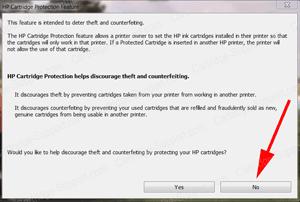
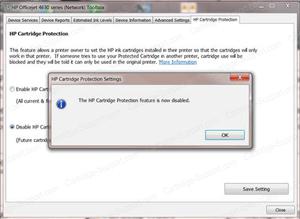
If you selected “Yes” in error, you may see a second screen asking you to enable or disable HP Cartridge Protection.
Select “Disable HP Cartridge Protection” then “Save Setting” and close.
It is important to note that most remanufactured inkjet cartridges are 100% guaranteed. Most manufacturers warrant against any damage to your printer.
In order to continue or begin using your printer, click OK or Continue to dismiss the printer prompts that appear on your screen after installing the remanufactured cartridges. Do not click "Cancel".
This message may reappear prior to the depletion of your cartridge. Please follow the same procedure to dismiss the message if this does occur.
If you did click "Cancel", click here for more information.
Your rights as a consumer are protected under the Magnuson-Moss Warranty Federal Trade Commission Improvement Act, Subparagraph C, Section 101.
"The use of a non-HP ink cartridge or a refilled ink cartridge does not affect either the warranty to the customer or any HP support contract with the customer."
Please click here for more information
In order to continue or begin using your printer, click OK to dismiss the printer prompts that appear on your screen after installing the remanufactured cartridges.
This message may reappear prior to the depletion of your cartridge. Please follow the same procedure to dismiss the message if this does occur.

The message displayed above may not look identical to the one you are experiencing, but the same procedures outlined may be used for the cartridge you have chosen to troubleshoot.
It is important to note that most remanufactured inkjet cartridges are 100% guaranteed. Most manufacturers warrant against any damage to your printer.
In order to continue or begin using your printer, click OK or Continue to dismiss the printer prompts that appear on your screen after installing the remanufactured cartridges. Do not click "Cancel".
This message may reappear prior to the depletion of your cartridge. Please follow the same procedure to dismiss the message if this does occur.
If you did click "Cancel", click here for more information.
Your rights as a consumer are protected under the Magnuson-Moss Warranty Federal Trade Commission Improvement Act, Subparagraph C, Section 101.
"The use of a non-HP ink cartridge or a refilled ink cartridge does not affect either the warranty to the customer or any HP support contract with the customer."
Please click here for more information How to respond to Warranty messages

Your printer has a new version of HP firmware that will not accept the remanufactured product you currently have.
Please email us at support@cartridge-support.com to determine if you qualify for a replacement cartridge.
The following information is required to determine replacement eligibility and to ensure timely processing.
- Which printer are you using?
- Where was the product purchased?
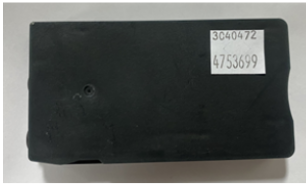
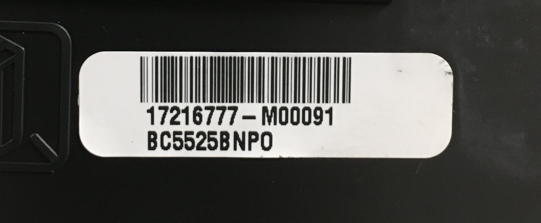
- What are the cartridge codes? (The cartridge codes are located on a small white label on the front or back of the cartridge. There will be 2 rows of numbers only - please include both rows beginning with the top row.)
- To which address should the replacement cartridge be sent? Please be sure to include your name, city, state and zip code.
Requests submitted without all of the required information may be delayed.
Begin by removing the cartridge that is causing the error from its cradle.
Once the cartridge is removed, confirm that there is a chip intact and in the correct location.
If the chip is missing, return the cartridge to its place of purchase.
If the chip is in place, you may need to clean it from any type of obstruction or debris.
You may use a pencil eraser to clean the chip.
- Gently brush the chip with the pencil eraser to remove any potential obstruction or debris.
- You may also use any type of lint free cloth or a coffee filter.
- Again, gently wipe the chip with the lint free cloth removing any type of obstruction or debris.
Replace the cartridge in the cradle, making sure that the cartridges are all aligned with each other.
If the cartridge does not line up with the others, remove and reinstall until all cartridges are aligned.
Close the lid and follow any on screen prompts that may appear.
If you have attempted these procedures and you encounter the same error, please look at your printer model.
If you are using an HP Officejet Pro 276dw, 8610, 8615, 8616, 8620, 8625, 8630, 8640 or 8660, please select the troubleshooting for Ink Cartridge Damaged.
If you are using a different printer model, there is most likely an electrical problem with the cartridge; and you should return the cartridge to the place of purchase.
If you have printed a document and are unsatisfied with the print quality, you may need to perform a cleaning cycle in order to improve the quality of your print.
Please attempt the following procedures in order to do so. Please keep in mind that this process may vary by printer and that you may also consult your printer’s user manual for instructions on performing a cleaning cycle.
- On your Printer's LCD screen, select Setup
- Next select Tools
- Choose Clean Printhead
- You will observe your printer performing a cleaning cycle.
- Once the cycle is complete, your printer will print a test page.
Once the test page has been printed you may select "No" to finish, or you may select "Yes" to continue with another cleaning cycle if you are not satisfied with your test page.
Please be aware that cleaning your printhead does consume ink; and therefore, should only be completed when necessary.
If the print on your test page is satisfactory, you may return to the document you wish to print and resume printing.
If your test page is unsatisfactory after performing the cleaning cycles, you may need to replace your inkjet cartridge.
If you have printed a document and are unsatisfied with the print quality, you may need to perform a cleaning cycle in order to improve the quality of your print.
Please attempt the following procedures in order to do so. Please keep in mind that this process may vary by printer and that you may also consult your printer’s user manual for instructions on performing a cleaning cycle.
- On your Printer's LCD screen, select Setup
- Next select Tools
- Choose Clean Printhead
- You will observe your printer performing a cleaning cycle.
- Once the cycle is complete, your printer will print a test page.
Once the test page has been printed you may select "No" to finish, or you may select "Yes" to continue with another cleaning cycle if you are not satisfied with your test page.
Please be aware that cleaning your printhead does consume ink; and therefore, should only be completed when necessary.
If the print on your test page is satisfactory, you may return to the document you wish to print and resume printing.
If your test page is unsatisfactory after performing the cleaning cycles, you may need to replace your inkjet cartridge.
- Restart both your printer and computer and attempt your print again
If that does not resolve the error, please try to clear the Print Spooler:
- Search Windows for Services, and then click Services in the list of results. (The Search Bar can be found by clicking the Windows button in the lower left corner of the screen.)
- Select Print Spooler from the alphabetical list.
- Right-click Print Spooler and choose "Stop".
- Open Windows Explorer (the icon that looks like a file folder).
- Select the (C:) drive in the left pane under "Computer".
- Double-click the Windows folder.
- Scroll down and open the "System32" folder.
- Open the "spool" folder and delete all files inside the PRINTERS folder.
- Restart your computer and attempt your print again
If you have attempted both of these procedures and you encounter the same error, there is most likely an electrical problem with the cartridge, and you should return the cartridge to the place of purchase.
If you need to print right away and this troubleshooting did not solve the problem with your cartridge, please select the option entitled "One Cartridge Printing".
* Page yield based on prints At 5% coverage.