Possible Troubleshooting:
Select Troubleshooting
Compatible with following printers:
Comparable OEM Numbers:
(This product may also be associated with these numbers)
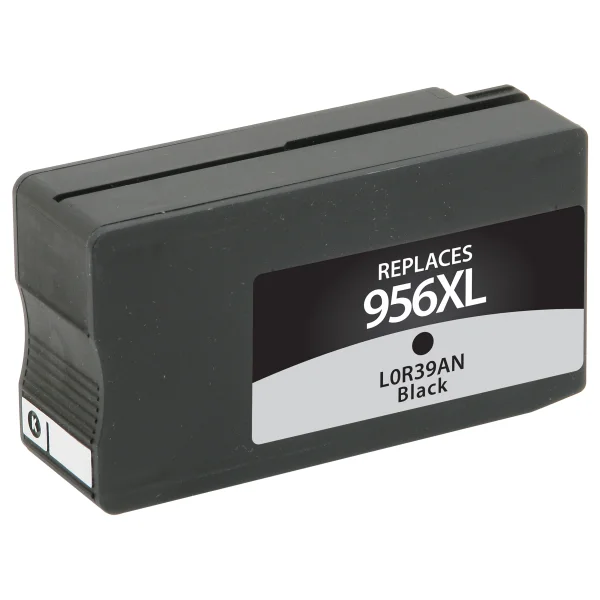
HP 956XL
HP L0R39AN
Related articles:
-
No related articles found. If you didn't find the solution, please contact us!
Additional Support
If you didn’t find the solution, please contact us!
To request product replacement, please click here.

Please select an issue you might be having with your cartridge from Possible Troubleshooting section
Installation Instructions Not Available
We're sorry, installation instructions for this product are not available at the moment. Our team is working on adding them, so please check back soon.
You can still view possible troubleshooting resources for this product in the menu on the left.
The first step to try and correct this error is to OPEN AND CLOSE the lid on your printer. If the error persists, please proceed to the process below.
To request a replacement item for your printer, please send the following information to support@cartridge-support.com:
1. What printer are you using?
2. Where was your product purchased?
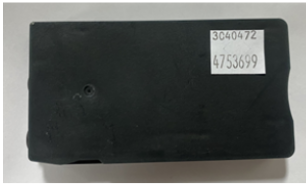
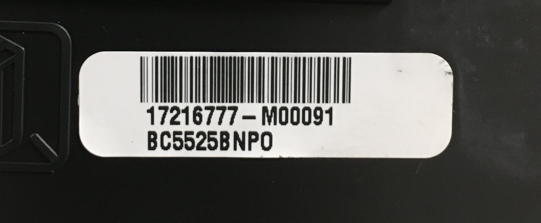
3. What is the cartridge code(s)? (The cartridge codes are located on a small white label on the front or back of the cartridge. There will be 2 rows of numbers only - please include both rows beginning with the top row.) If you have multiple cartridges, please provide all cartridges codes and a replacement will be sent for each code you provide.
4. Shipping address for the replacement product to be shipped to. Please be sure to include city, state and zip code.
Once your information is received and verified, replacement product will be shipped via 2nd day service. Requests submitted without all of the information may be delayed further.
1. On the printers LCD screen, locate the "settings" icon on the main screen and press to select.
2. Scroll down and locate "printer maintenance" and press to select.
3. Next, press "update the printer" from the available options.
4. Press "printer update options".
5. Choose "Do Not Check”. This option prevents the automatic installation of firmware updates that might otherwise eliminate your ability to use aftermarket printer cartridges.
Please note - not all firmware updates disable aftermarket printer cartridges, and some may contain important security updates. You are encouraged to review firmware release notes and periodically check for critical security updates from your printer manufacturer so you can make an informed decision whether to install a particular firmware version.
* Page yield based on prints At 5% coverage.